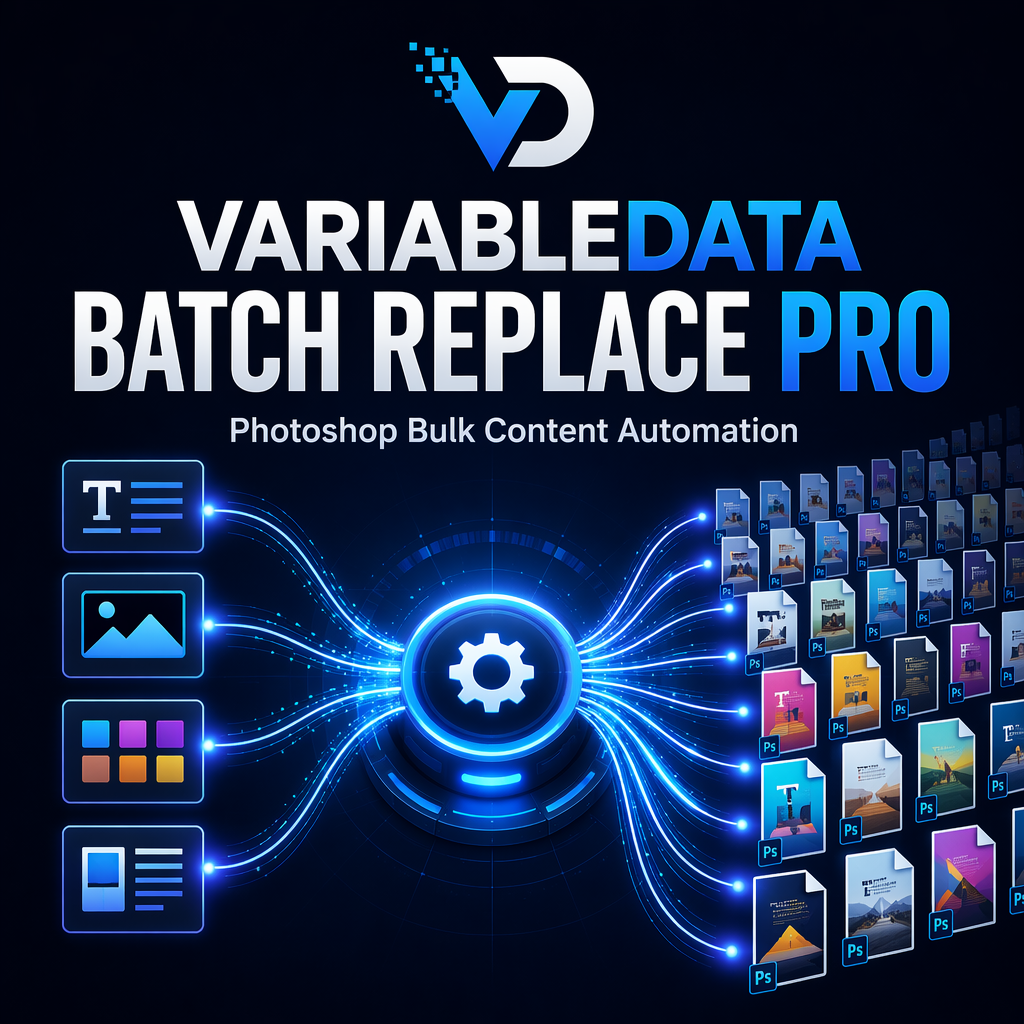
Photoshop remains one of the most powerful design tools available, but many production workflows still rely on repetitive manual editing. Whether you create e-commerce product images, localized advertising campaigns, certificates, promotional banners, catalogs, or personalized marketing assets, manually replacing text and images can quickly become a bottleneck.
When a project requires hundreds of design variations, even a simple PSD template can become extremely time-consuming to manage. Designers often spend more time updating content than creating actual designs.
A variable data workflow solves this problem by allowing Photoshop templates to automatically pull content from text files, CSV files, image folders, and structured datasets.
Key Takeaways
- Replace text layers automatically using TXT, CSV, or folder names.
- Batch replace image placeholders and Smart Objects.
- Generate hundreds of design variations from one PSD template.
- Maintain alignment and image fitting automatically.
- Export JPG, PNG, TIFF, or PSD files in bulk.
- Reduce repetitive production work dramatically.
The Problem with Manual Photoshop Production
Many Photoshop projects start with a single design concept and eventually expand into dozens or hundreds of variations. Marketing teams may need localized campaigns for different regions. E-commerce businesses often require unique images for every SKU. Print providers regularly create personalized products using customer data.
Without automation, every version requires manual updates. Designers open a PSD, replace text, swap images, adjust positioning, save the file, export assets, and repeat the process again and again.
This workflow becomes increasingly inefficient as project volume grows.
The larger the dataset, the greater the productivity loss.
Manual Workflow: Why It Becomes a Bottleneck
Let's look at a common example.
An online store sells 300 products. Each product requires:
- Product title
- Product image
- Promotional badge
- Localized language version
Using a manual workflow, designers typically:
- Open the PSD template.
- Edit text layers.
- Import new product images.
- Resize and align images.
- Adjust Smart Objects.
- Export the final image.
- Repeat hundreds of times.
Even if each variation takes only a few minutes, production time quickly becomes substantial.
Script Workflow: Automated Variable Data Production
A batch replacement workflow transforms Photoshop into a production engine.
Instead of manually editing every version, the template becomes a reusable framework.
Data is loaded once, mapped to specific layers, and automatically applied across all generated outputs.
The workflow supports:
- Text replacement
- Image replacement
- Smart Object replacement
- Automatic color extraction
- Multi-template processing
- Bulk exporting
As a result, Photoshop can generate large numbers of design variations with minimal manual intervention.
Step-by-Step Guide
Step 1: Prepare Your Photoshop Template
Create a PSD file containing all required text layers, image placeholders, and Smart Objects.
Organize layers clearly and maintain a consistent structure for easier mapping.
Step 2: Launch the Batch Replacement Script
Open Photoshop and launch the automation script.
The script scans visible layers and creates a mapping interface.
Step 3: Assign Data Sources
Select the target layer and connect a data source.
Available data sources include:
- TXT files
- CSV columns
- Folder names
- Image folders
Each layer can be connected independently.
Step 4: Configure Image Fitting
Choose how images should behave inside containers.
- Fill
- Fit
- Original Size
- Stretch
- Fixed Width
- Fixed Height
This ensures consistent layouts across all generated designs.
Step 5: Configure Alignment
Select alignment positions using the built-in 9-point alignment system.
This prevents image placement inconsistencies when source files have different dimensions.
Step 6: Configure Export Settings
Select output formats such as:
- JPG
- PNG
- TIFF
- PSD
You can also export complete documents, individual artboards, or sliced outputs.
Step 7: Generate All Variations
Start the batch process.
The script automatically replaces content, generates variations, and exports finished files.
Pro Tip
Use CSV files when managing large product catalogs. CSV-based workflows make it much easier to update product names, descriptions, pricing labels, and regional content without modifying the Photoshop template itself.
Common Mistakes
- Using inconsistent layer naming structures.
- Changing template layouts during production.
- Using images with extreme aspect ratio differences.
- Forgetting to verify CSV column names.
- Exporting without testing a small batch first.
Manual vs Automated Production
| Task | Manual Workflow | Automated Workflow |
|---|---|---|
| Text Replacement | Manual Editing | Automatic Data Mapping |
| Image Replacement | One by One | Bulk Processing |
| Smart Objects | Manual Updates | Automatic Replacement |
| Exporting | Repeated Exports | Batch Export |
| Scalability | Limited | High Volume Production |
Benefits of Variable Data Automation
Automation is not only about speed.
It also improves consistency across large projects.
Every generated design follows the same template structure, alignment rules, and export settings.
This reduces production errors while improving overall output quality.
Benefits include:
- Faster production cycles
- Reduced manual work
- Improved consistency
- Scalable template systems
- Simplified localization workflows
- Better asset management
Frequently Asked Questions
Can I replace Smart Objects automatically?
Yes. The workflow supports Smart Object replacement while preserving template structures.
Can I use CSV files?
Yes. CSV columns can be mapped directly to text layers.
Can I generate multiple template variations?
Yes. Multi-template processing supports both combination and one-to-one workflows.
What export formats are supported?
JPG, PNG, TIFF, and PSD.
Can I export individual artboards?
Yes. Artboard export is supported.
Ready to Scale Photoshop Production?
Instead of manually editing hundreds of PSD files, use a variable data workflow to automate text replacement, image replacement, Smart Object updates, color generation, and bulk exporting from a single interface.
Conclusion
As design production volumes continue to grow, manual Photoshop workflows become increasingly difficult to maintain. Variable data automation offers a practical solution by connecting structured data directly to reusable templates.
By automating text replacement, image replacement, Smart Object updates, and export workflows, designers can focus more on creative work and less on repetitive production tasks.
For teams managing catalogs, advertising assets, localized campaigns, or personalized graphics, batch replacement workflows can dramatically improve efficiency while maintaining professional design consistency.