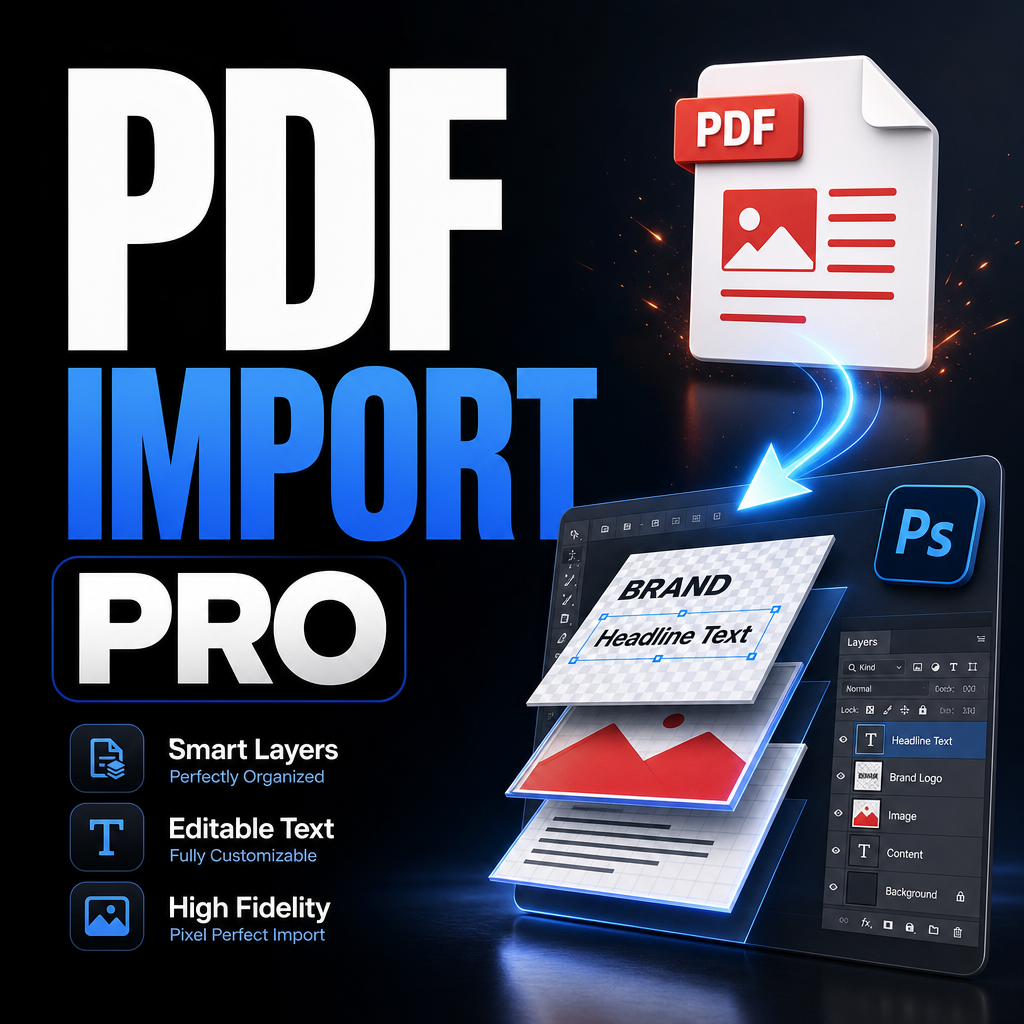
Working with PDF files in Photoshop is a common task for print designers, packaging professionals, marketing teams, and production artists. Whether you're opening packaging artwork, brochures, labels, large-format graphics, or multi-page documents, Photoshop provides built-in PDF import capabilities. However, once projects become larger, repetitive PDF imports can quickly turn into a time-consuming process.
Many designers find themselves manually opening individual PDF pages, selecting crop boundaries, adjusting resolutions, choosing color modes, exporting files, and repeating the same process dozens or even hundreds of times. This workflow may seem manageable for small projects, but it becomes increasingly inefficient when handling production files on a daily basis.
In this guide, you'll learn how to import PDF pages in Photoshop, understand the available crop options, process multiple pages efficiently, and create a more scalable workflow for exporting PSD, JPG, and PNG files.
Key Takeaways
- Photoshop can import individual pages from PDF documents.
- Different crop boxes affect the final imported dimensions.
- Resolution settings directly influence image quality and file size.
- Large multi-page PDFs can become slow when processed manually.
- Automated page-range processing can significantly reduce repetitive work.
- PSD, JPG, and PNG exports can be integrated into a streamlined workflow.
The Problem With Manual PDF Processing
PDF files are frequently used as final delivery formats because they preserve layout accuracy, vector information, fonts, and print settings. While Photoshop can rasterize PDF pages effectively, the import process is designed primarily for opening individual documents rather than managing production-scale workloads.
Imagine receiving a 120-page catalog that requires page-by-page image exports. A designer must manually select each page, confirm import settings, wait for rendering, export the image, close the document, and repeat the process. Even if each page takes only a minute to process, the total time investment becomes substantial.
The challenge becomes even greater when documents contain bleed areas, trim marks, large-format scaling requirements, or specific color mode needs. Small mistakes made during repetitive tasks can create inconsistencies across the entire project.
Manual Workflow: How Most Designers Process PDFs
- Open Photoshop.
- Select Open and choose a PDF file.
- Select a page to import.
- Choose crop settings.
- Choose resolution.
- Select RGB or CMYK mode.
- Wait for rasterization.
- Export the document.
- Close the file.
- Repeat for every page.
This workflow works reasonably well for one or two pages. However, the number of repetitive actions increases dramatically as project size grows. The more pages involved, the more opportunities there are for inconsistencies and human error.
Script Workflow: A More Efficient Approach
A dedicated PDF Import Script simplifies the entire process by combining multiple repetitive actions into a single workflow.
Instead of importing pages individually, designers can select page ranges, define resolution settings once, choose crop boundaries, specify color modes, and automatically export results into PSD, JPG, or PNG formats.
The workflow becomes:
- Select the PDF file.
- Choose import settings once.
- Specify page range.
- Select output format.
- Run the import process.
- Allow the script to process pages automatically.
This approach improves consistency while reducing repetitive manual operations.
Step-by-Step Guide
Step 1: Select Your PDF File
Begin by choosing the PDF document you want to process. This can be a brochure, packaging file, catalog, artwork proof, label sheet, or any other PDF-based design file.
Step 2: Define Resolution
Resolution determines the raster quality of imported pages. Common settings include:
- 72 DPI for web previews
- 150 DPI for lightweight review files
- 300 DPI for professional print work
- Higher values for specialized production needs
Step 3: Choose Color Mode
Select RGB for digital graphics and online assets. Select CMYK when preparing print-oriented workflows that require press-ready color separation.
Step 4: Select Crop Boundary
Photoshop supports several PDF crop types:
- Bounding Box
- Media Box
- Crop Box
- Bleed Box
- Trim Box
- Art Box
The correct choice depends on your production requirements and the structure of the PDF file.
Step 5: Specify Page Range
Instead of opening pages individually, use flexible page ranges such as:
- All
- 5
- 1-20
- 1,5,10-25
This makes batch processing significantly easier for larger projects.
Step 6: Select Output Format
Choose whether imported pages should remain open in Photoshop or automatically export as PSD, JPG, or PNG files.
Step 7: Process the Document
Once settings are configured, the import workflow can process pages sequentially while maintaining consistent output settings.
Pro Tip
When working with packaging, labels, or print-ready artwork, use the Bleed Box or Trim Box whenever possible. These crop boundaries often reflect the intended production dimensions more accurately than the Media Box.
Common Mistakes to Avoid
- Using inconsistent DPI settings across pages.
- Mixing RGB and CMYK outputs unintentionally.
- Selecting the wrong crop boundary.
- Forgetting bleed requirements for print jobs.
- Exporting hundreds of pages manually.
- Leaving large imported documents open and consuming memory.
- Creating inconsistent file naming structures.
Manual vs Automated Workflow Comparison
| Task | Manual Workflow | Script Workflow |
|---|---|---|
| Page Selection | One page at a time | Page ranges supported |
| Crop Settings | Repeated every import | Configured once |
| Export Process | Manual | Automatic |
| Output Consistency | Depends on operator | Standardized |
| Memory Management | Manual closing required | Automatic save-and-close options |
| Large PDF Projects | Time intensive | More scalable |
Benefits of Automating PDF Imports
Automation is not only about speed. It also improves reliability and consistency throughout the production process.
- Reduces repetitive work.
- Improves consistency across pages.
- Minimizes import mistakes.
- Simplifies export workflows.
- Handles large PDF projects more efficiently.
- Supports print and digital production workflows.
- Maintains standardized settings between projects.
- Helps reduce Photoshop memory usage during batch operations.
For professionals who regularly process catalogs, packaging files, brochures, or large multi-page documents, these benefits compound over time.
Frequently Asked Questions
Can Photoshop import multiple PDF pages?
Photoshop can import PDF pages individually, but dedicated automation tools can process multiple pages more efficiently through page-range workflows.
What is the best DPI for PDF imports?
300 DPI is commonly used for print production, while lower resolutions may be sufficient for web previews and proofing.
Which crop box should I use?
Bleed Box and Trim Box are typically preferred for print workflows, while Media Box may include additional document areas.
Can PDF pages be exported automatically?
Yes. Automated workflows can save imported pages directly as PSD, JPG, or PNG files.
Can I process only specific pages?
Yes. Page ranges such as 1-10 or custom selections like 1,3,5-15 are commonly supported.
Is automation useful for small projects?
Even small projects benefit from consistency, but the largest gains are usually seen when processing larger PDF documents.
Streamline Your Photoshop PDF Workflow
If you regularly import PDF pages into Photoshop, a dedicated PDF Import Script can help eliminate repetitive tasks, maintain consistent settings, and simplify batch exports for production projects.
Conclusion
Importing PDF pages in Photoshop is a routine task across design, print, and production industries. While Photoshop provides powerful rasterization capabilities, manually processing large PDF documents can become inefficient and error-prone.
By understanding crop boundaries, resolution settings, color modes, and page-range management, designers can build more efficient workflows and maintain higher consistency across projects.
For professionals handling catalogs, packaging artwork, brochures, labels, or multi-page production files, automating PDF imports and exports can significantly reduce repetitive work while improving workflow reliability. The result is a faster, more scalable Photoshop production process that allows designers to focus on creative work rather than repetitive file management.