Smart Grid Image Placer
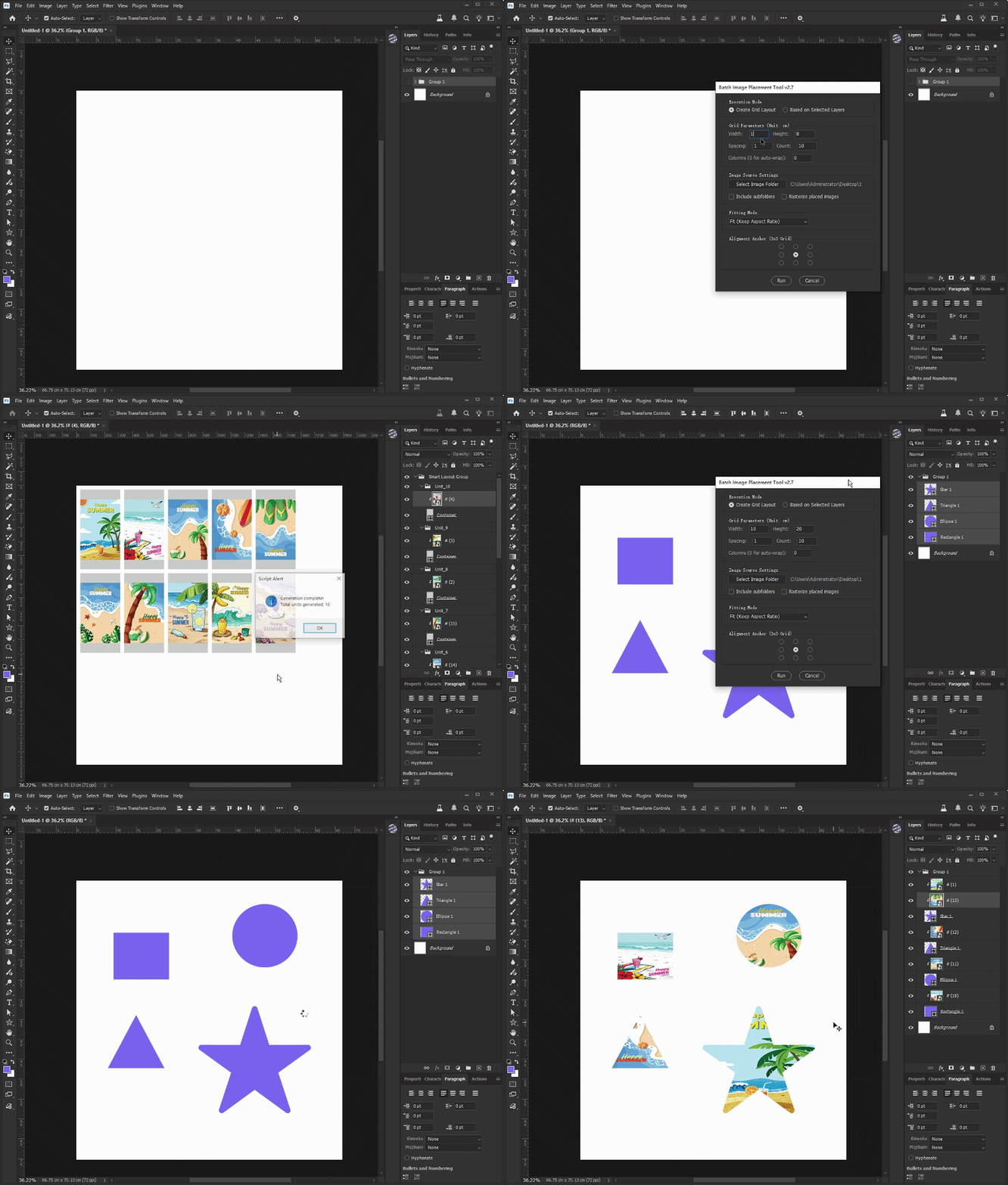
Smart Grid Image Placer Pro is a Photoshop Script that automatically creates image grids, batch places photos into shapes or selected layers, and applies intelligent fitting and alignment.
Product Description
🚀 Stop Wasting Hours Placing Images Manually
Creating product catalogs, photo sheets, sticker layouts, ID sheets, packaging previews, print boards, or bulk mockups often means placing hundreds of images one by one.
Manual resizing, clipping masks, alignment adjustments, and layout organization can quickly become repetitive and time-consuming.
Smart Grid Image Placer Pro automates the entire workflow inside Photoshop.
✨ What This Script Can Do
🖼️ Automatic Batch Image Placement
Import hundreds of images directly into Photoshop layouts with a single click.
📐 Smart Grid Generator
Create customizable image grids with adjustable:
-
Cell Width
-
Cell Height
-
Spacing
-
Quantity
-
Fixed Columns or Auto-Wrapping
🎯 Intelligent Image Fitting
Choose how images fit into containers:
-
Contain (Full Display)
-
Cover (Fill & Crop)
-
Original Size
-
Stretch to Fill
🔲 Layer-Based Placement Mode
Automatically place images into existing selected layers using clipping masks.
📍 9-Point Alignment Control
Position images precisely using a visual 3×3 anchor system.
📂 Recursive Folder Support
Load images from nested folders automatically.
⚡ Optional Rasterization
Convert placed smart objects into raster layers during import.
👨💻 Perfect For
-
Photoshop Designers
-
Print Production Teams
-
E-commerce Sellers
-
POD Businesses
-
Packaging Designers
-
Photo Studios
-
Marketing Agencies
-
Mockup Creators
-
Sticker Sheet Designers
-
Catalog Designers
📖 How To Use
Grid Mode
-
Open or create a Photoshop document.
-
Launch the script.
-
Choose Create New Grid mode.
-
Set grid dimensions and spacing.
-
Select your image folder.
-
Choose fitting and alignment options.
-
Click Run.
The script automatically creates containers and fills them with images.
Layer Mode
-
Create shape layers or placeholders.
-
Select the target layers.
-
Launch the script.
-
Choose Selected Layers Mode.
-
Select the image folder.
-
Click Run.
Images are automatically placed into the selected containers.
✅ Compatibility
-
Adobe Photoshop CC
-
Adobe Photoshop 2020+
-
Adobe Photoshop 2021+
-
Adobe Photoshop 2022+
-
Adobe Photoshop 2023+
-
Adobe Photoshop 2024+
-
Adobe Photoshop 2025+
-
Windows
-
macOS
GIF Demonstration