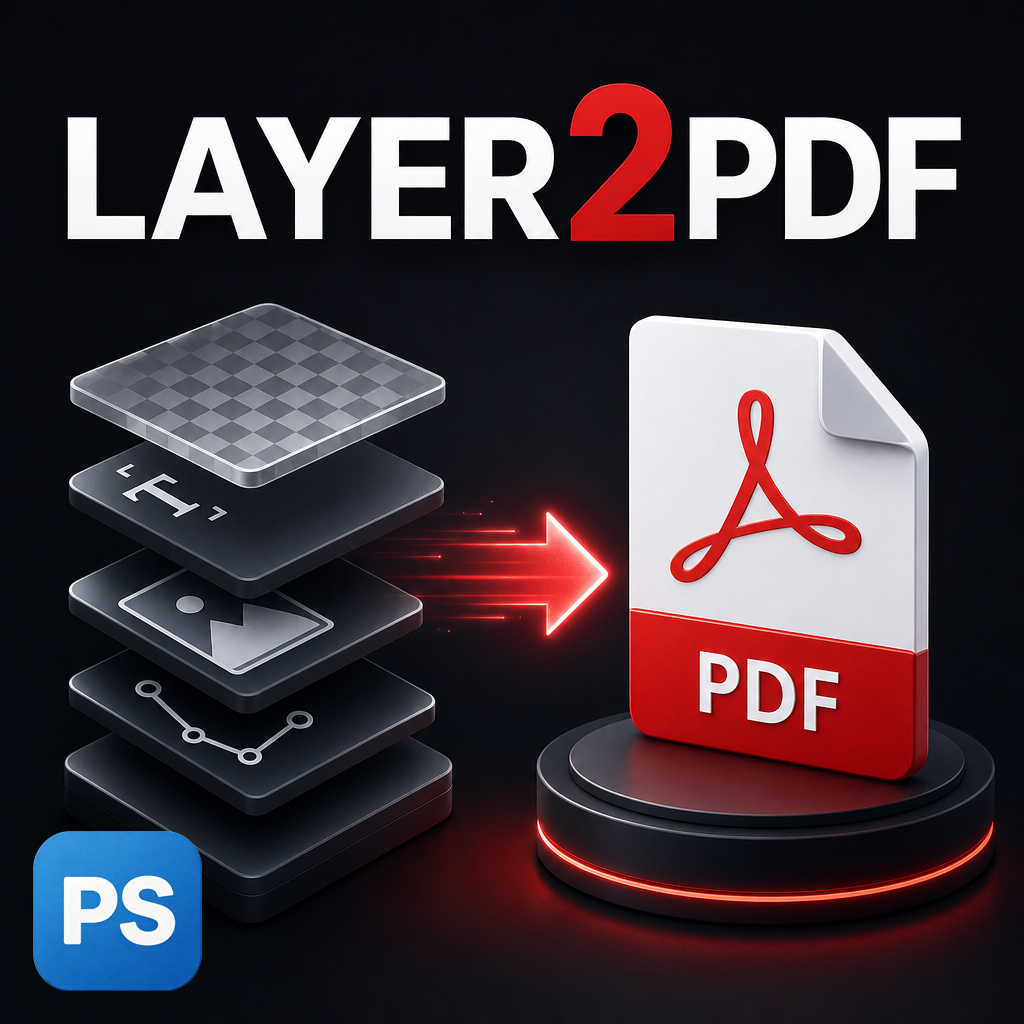
Photoshop is commonly used for creating layered artwork, packaging mockups, marketing assets, product variations, presentations, and print-ready designs. As projects grow, designers often need to convert multiple layers into PDF documents for client review, production approval, documentation, or distribution.
While Photoshop includes PDF export functionality, converting dozens or even hundreds of layers into a structured PDF workflow can become repetitive. Many designers manually toggle layer visibility, export files individually, and spend unnecessary time organizing output documents.
This tutorial explains how to convert Photoshop layers into a multi-page PDF efficiently, how manual workflows typically work, and how automation can significantly reduce production time when working with layered PSD files.
Key Takeaways
- Convert Photoshop layers into a single multi-page PDF.
- Export individual layers as separate PDF files.
- Exclude hidden layers from export.
- Ignore empty and adjustment layers automatically.
- Choose between dynamic cropping and original canvas dimensions.
- Control export order and output resolution.
- Reduce repetitive export work through automation.
Why Exporting Photoshop Layers to PDF Can Be Difficult
Many creative workflows eventually require PDF output. Designers may need to present multiple concepts to clients, create approval documents, archive design versions, or deliver production-ready files.
The challenge is that Photoshop layers are not automatically treated as PDF pages. Every layer often requires individual handling. If a project contains fifty layers, a designer may need to repeat the same export process fifty times.
This becomes even more difficult when layer groups are nested, hidden layers exist throughout the document, or adjustment layers should be excluded from the final export.
For large production environments, manual processing introduces inconsistency and increases the likelihood of human error.
Traditional Manual Workflow
Without automation, exporting layers to PDF generally involves several repetitive steps.
- Locate the first layer.
- Hide all remaining layers.
- Export or save as PDF.
- Rename the exported file.
- Repeat the process for every layer.
- Combine files externally if a multi-page PDF is required.
- Verify page order.
- Remove unwanted empty exports.
This workflow may seem manageable with five layers. However, it becomes inefficient when working with complex packaging systems, product catalogs, UI screens, or large presentation documents.
Every additional layer increases export time and review overhead.
Automated Script Workflow
A dedicated layer-to-PDF automation workflow removes most manual intervention.
The script scans layers recursively, identifies valid export candidates, and creates PDF output based on predefined settings.
Instead of processing layers individually, designers simply choose export options and allow Photoshop to complete the task automatically.
The automation supports:
- All layers or selected groups
- Visible layer filtering
- Empty layer filtering
- Top-to-bottom or bottom-to-top export order
- Dynamic cropping
- Canvas-size preservation
- Multi-page PDF generation
- Separate PDF generation
- Resolution control
This approach transforms a repetitive production task into a predictable one-click workflow.
Step-by-Step Guide
Step 1: Open Your PSD File
Start by opening the Photoshop document that contains the layers you want to convert into PDF pages.
The workflow works particularly well for documents that contain multiple design variations, packaging concepts, presentations, or approval stages.
Step 2: Launch the Layer-to-PDF Script
Run the script from Photoshop.
A control panel appears, allowing you to configure export settings before processing begins.
Step 3: Choose an Output Folder
Select where exported PDFs should be saved.
Using a dedicated output folder helps keep large exports organized and prevents confusion when generating dozens of files.
Step 4: Select Export Scope
You can process:
- All layers in the document
- A selected layer group
- A specific layer
This flexibility is useful when only part of a document needs exporting.
Step 5: Configure Layer Filters
Enable visible-layer filtering if hidden content should not appear in the final PDF.
Enable empty-layer filtering to exclude blank or unsupported adjustment layers.
These filters help maintain cleaner output files.
Step 6: Choose Page Size Behavior
Select Dynamic Crop if each page should tightly fit its content.
Select Canvas Size if every page should maintain the original document dimensions.
The correct option depends on the intended use of the PDF.
Step 7: Set Export Order
Determine whether layers should be processed from top to bottom or from bottom to top.
This directly affects page sequence in the final PDF document.
Step 8: Choose Output Mode
You can create:
- A single merged multi-page PDF
- Individual PDF files for every layer
Many client review workflows prefer a single document, while asset distribution workflows often require separate files.
Step 9: Select Resolution
Choose between keeping the original resolution or exporting at predefined DPI settings.
This allows greater control over print quality and file size.
Step 10: Run the Process
Click the processing button and allow the script to generate PDFs automatically.
A progress indicator displays current status while layers are being processed.
Pro Tip
Before generating a multi-page PDF, organize layer names carefully. Clean layer names create cleaner file names when exporting individual PDFs and make future document management significantly easier.
Common Mistakes
- Leaving unnecessary hidden layers visible.
- Using inconsistent layer naming conventions.
- Exporting adjustment layers unintentionally.
- Selecting the wrong page order.
- Using dynamic crop when fixed dimensions are required.
- Overlooking output resolution requirements.
Manual vs Automated Export Comparison
| Task | Manual Method | Automated Script |
|---|---|---|
| Layer Selection | Manual | Automatic |
| Visibility Filtering | Manual | Built-In |
| Empty Layer Detection | Manual Review | Automatic |
| Page Ordering | Manual Control | Built-In |
| Multi-Page PDF Creation | Multiple Steps | One Process |
| Batch Processing | Limited | Designed For Batch Export |
| Large Projects | Time Intensive | Efficient |
Benefits of Automating Layer-to-PDF Export
Automation offers more than convenience. It introduces consistency and scalability into creative production workflows.
Design teams handling packaging variants, marketing assets, product catalogs, instructional documents, and approval presentations can process significantly larger workloads without increasing repetitive labor.
Additional advantages include:
- Consistent output structure
- Reduced export errors
- Improved project organization
- Faster review preparation
- Better handling of complex PSD files
- More predictable production workflows
For agencies and production departments, these improvements accumulate over hundreds of export cycles throughout the year.
Frequently Asked Questions
Can I create one PDF from multiple layers?
Yes. Layers can be combined into a single multi-page PDF document.
Can nested layer groups be processed?
Yes. The script recursively scans layer groups and subgroups.
Can hidden layers be excluded?
Yes. Visible-layer filtering allows hidden layers to be ignored.
Can adjustment layers be skipped?
Yes. Empty and adjustment layer filtering helps avoid unnecessary pages.
Will page order follow the Layers panel?
Yes. You can export from top-to-bottom or bottom-to-top.
Can I export separate PDF files instead of one document?
Yes. Individual PDF generation is supported.
Can PDF pages be cropped automatically?
Yes. Dynamic crop mode trims transparent areas around content.
Is resolution control available?
Yes. Original resolution or predefined DPI options can be selected.
Streamline Photoshop PDF Production
If you regularly convert layered PSD files into PDF documents, automating the process can dramatically reduce repetitive export work while improving consistency across projects.
Layer2PDF Pro provides a practical workflow for generating multi-page PDFs or separate PDF files directly from Photoshop layers.
Conclusion
Exporting Photoshop layers to PDF is a common requirement across design, publishing, packaging, and production workflows. Unfortunately, the traditional manual process scales poorly as projects become more complex.
By automating layer collection, filtering, ordering, cropping, and PDF generation, designers can spend less time managing exports and more time focusing on creative work.
Whether you need a single review document, a presentation-ready PDF, or a batch of individual files, an automated layer-to-PDF workflow provides a faster and more reliable solution for modern Photoshop production environments.