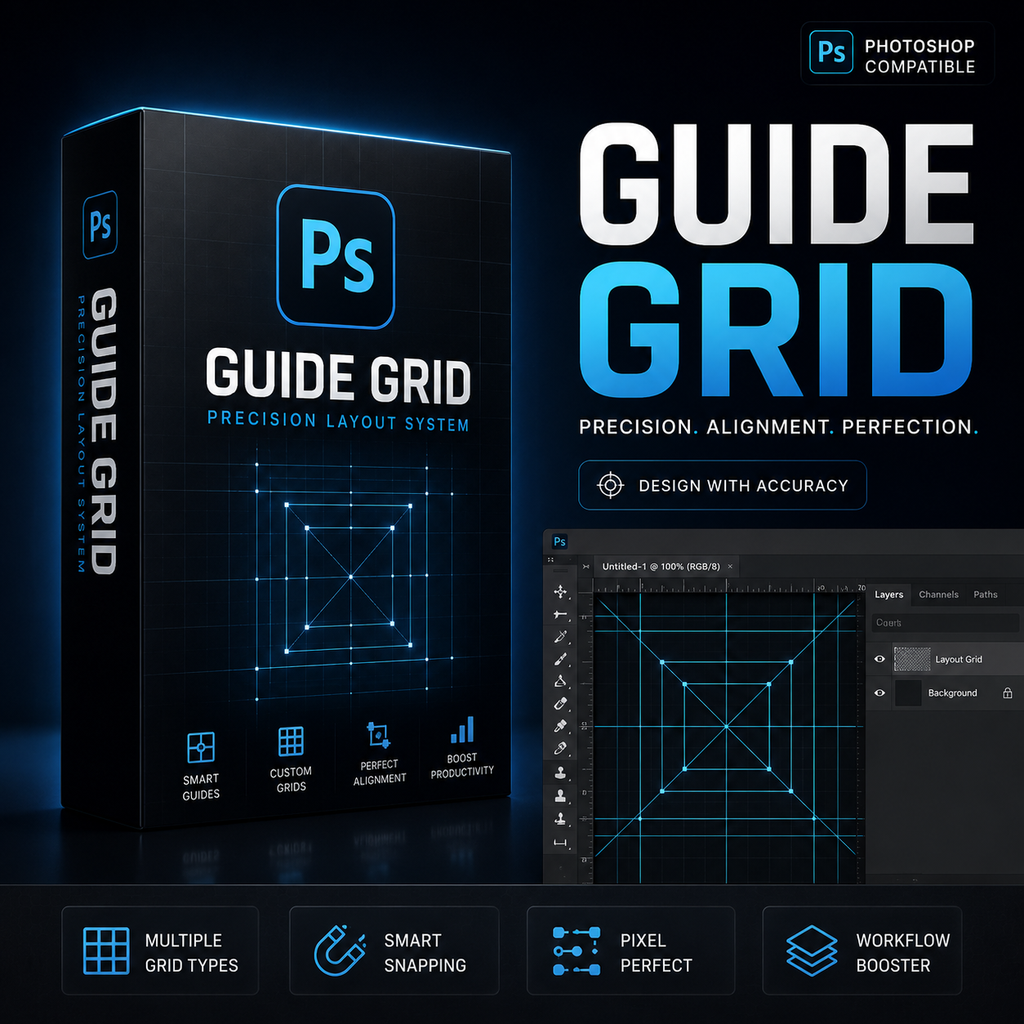
Creating accurate guides is one of the most important yet repetitive tasks in Photoshop. Whether you are designing websites, social media graphics, print layouts, packaging, presentations, or marketing materials, guides provide the visual structure that keeps designs aligned and consistent.
Unfortunately, many designers still rely on manually dragging guides from rulers and calculating spacing by hand. While this approach works for simple projects, it becomes increasingly inefficient when working with complex grids, multiple margins, responsive layouts, or recurring design systems.
In this tutorial, you'll learn how to create professional guide systems in Photoshop, understand the limitations of manual guide creation, and discover a faster workflow using automated guide generation.
Key Takeaways
- Guides help maintain alignment, spacing consistency, and visual hierarchy.
- Manual guide creation becomes inefficient as projects grow in complexity.
- Equal distribution grids eliminate repetitive spacing calculations.
- Margin systems improve consistency across layouts.
- Rule of Thirds and Golden Ratio guides can improve composition.
- Guide presets reduce setup time for recurring projects.
- Automated guide generation significantly speeds up layout preparation.
The Problem with Manual Guide Creation
Most Photoshop users start by enabling rulers and dragging guides onto the canvas. This is fine when you need a few alignment markers, but the process quickly becomes cumbersome.
Imagine building a 12-column grid for a website mockup. You must calculate column widths, determine gutter spacing, account for margins, and place every guide individually. If the artboard size changes, the entire process may need to be repeated.
The same challenge appears when creating magazine layouts, social media templates, packaging designs, and advertising creatives. Small mathematical errors can introduce inconsistencies that affect the overall design quality.
Designers often spend more time preparing the workspace than actually designing. The larger the project, the more expensive this inefficiency becomes.
Traditional Manual Workflow
A typical manual guide workflow usually looks like this:
- Enable rulers.
- Calculate required margins.
- Determine grid spacing.
- Drag guides individually.
- Verify alignment.
- Adjust guides if dimensions change.
- Repeat for future documents.
This process introduces multiple opportunities for human error. Even experienced designers occasionally place guides incorrectly or forget exact spacing values between projects.
As projects scale, the amount of repetitive setup work grows significantly.
Automated Guide Workflow
A more efficient workflow uses automation to generate guides based on precise measurements and predefined layouts.
Instead of manually placing every guide, designers can define spacing values, margins, row counts, column counts, or composition templates and generate the entire guide system instantly.
GuideGrid Pro streamlines this process through several productivity-focused features:
- Custom vertical and horizontal guide intervals.
- Equal distribution grids.
- Independent or linked margins.
- Millimeter, centimeter, pixel, and percentage units.
- Rule of Thirds templates.
- Golden Ratio templates.
- Center Cross templates.
- Reusable presets.
- Live guide previews.
This approach removes repetitive calculations and allows designers to focus on creative decisions.
Step-by-Step Guide
Step 1: Open Your Photoshop Document
Start by opening the document that requires a structured layout. This can be a web design, poster, brochure, social media graphic, or any other creative project.
Step 2: Choose Your Measurement Unit
Select the unit that best fits your workflow:
- Pixels for digital design.
- Millimeters for print production.
- Centimeters for larger print layouts.
- Percentages for responsive composition systems.
Step 3: Define Margins
Establish top, bottom, left, and right margins. Consistent margins create visual balance and improve readability.
If your design requires symmetrical spacing, lock margin values together to maintain consistency automatically.
Step 4: Create Grid Structures
Choose how you want guides generated:
- Specific spacing intervals.
- Equal-width columns.
- Equal-height rows.
- Combination layouts.
This flexibility allows you to create layouts ranging from simple landing pages to advanced editorial systems.
Step 5: Apply Composition Templates
For photography and visual storytelling projects, apply Rule of Thirds or Golden Ratio templates.
These composition systems help place focal points more effectively and improve visual balance.
Step 6: Preview the Layout
Review the generated guides before confirming the final structure.
Live previews allow quick adjustments without permanently affecting the document.
Step 7: Save as a Preset
If the layout will be reused in future projects, save it as a preset.
This is especially valuable for agencies, marketing teams, and production environments where consistency matters.
Pro Tip
Create presets for your most common deliverables such as Instagram posts, YouTube thumbnails, website mockups, brochures, packaging templates, and presentation slides. Building a preset library can eliminate repetitive setup work across dozens of projects.
Common Mistakes
- Using inconsistent margin values.
- Mixing measurement units accidentally.
- Creating guides without a clear layout strategy.
- Ignoring composition systems for visual content.
- Rebuilding identical guide structures repeatedly.
- Manually calculating grid spacing for every project.
- Forgetting to save reusable layouts as presets.
Manual vs Automated Guide Creation
| Task | Manual Workflow | GuideGrid Pro Workflow |
|---|---|---|
| Create Margins | Manual calculations | Instant generation |
| Build Grid Systems | Drag guides individually | Automatic distribution |
| Rule of Thirds | Calculate positions manually | One-click template |
| Golden Ratio | Complex calculations | Built-in template |
| Reuse Layouts | Start from scratch | Preset system |
| Adjust Layouts | Manual repositioning | Instant updates |
Benefits of Automated Guide Systems
Professional designers often underestimate how much time is spent on repetitive setup work. While guide creation itself may only take a few minutes per project, those minutes accumulate quickly over weeks and months.
Automating guide generation offers several advantages:
- Improved consistency.
- Faster project setup.
- Reduced calculation errors.
- Better collaboration.
- More reliable design systems.
- Higher productivity.
- More time for creative exploration.
For teams managing multiple client projects simultaneously, these efficiency gains can be substantial.
Frequently Asked Questions
Can I create guides using percentages?
Yes. Percentage-based positioning is supported and adapts to canvas dimensions.
Can I generate equal-width columns?
Yes. The grid generator can create evenly distributed column structures.
Does the tool support print design workflows?
Yes. Millimeter and centimeter units make it suitable for print projects.
Can I save guide configurations?
Yes. Presets allow reusable layouts across future projects.
Can existing guides be removed automatically?
Yes. You can choose to clear existing guides before generating new ones.
Does it support composition templates?
Yes. Rule of Thirds, Golden Ratio, and Center Cross templates are included.
Build Better Layouts in Less Time
Stop dragging guides one by one. Generate professional grids, margins, and composition systems instantly with GuideGrid Pro for Photoshop.
Create cleaner layouts. Work faster. Stay consistent.
Conclusion
Guide systems form the foundation of professional design. Whether you're creating digital interfaces, print materials, marketing graphics, or visual compositions, accurate guides help maintain consistency and structure.
While manual guide creation remains possible, it often introduces unnecessary friction into the design process. Automated guide generation provides a faster and more reliable alternative by eliminating repetitive calculations and setup tasks.
By combining custom intervals, equal distribution grids, margin controls, composition templates, live previews, and reusable presets, GuideGrid Pro transforms guide creation from a repetitive chore into a streamlined workflow. The result is more time spent designing and less time preparing the canvas.